Worksheets
Worksheets in TiDB Cloud Lake are used to organize, run, and save SQL statements. They can also be shared with others in your organization.
Creating a Worksheet
To create a new worksheet, click on Worksheets in the sidebar and select New Worksheet.
If your SQL statements are already saved in an SQL file, you can also create a worksheet directly from the file. To do so, click the ellipsis icon to the right of New Worksheet, then select Create from SQL File.
Editing and Running SQL Statements
To edit and run an SQL statement:
Click on the database icon above the SQL editor and select the database you want to query.
Click on the user icon above the SQL editor and choose a role to use. The dropdown list will display all the roles you have been granted, along with any child roles under your roles in the hierarchy. For more information about the role hierarchy, see Inheriting Roles & Establishing Hierarchy.
Edit the SQL statement in the SQL editor.
Click on the warehouse icon under the SQL editor and select a warehouse from the list.
Click Run Script.
The query result shows in the output area. You can click Export to save the whole result to a CSV file, or select one or multiple cells in the output area and press Command + C (on Mac) or Ctrl + C (on Windows) to copy them to your clipboard.
Query Result Defaults
TiDB Cloud Lake applies the following default limits to query results displayed in the worksheet output area:
The row and column limits are fixed. To adjust the max cell content length, click the settings icon in the bottom-right corner of the result area and choose a value (3K–Unlimited). Note that setting a very large value or Unlimited may cause the browser to slow down or become unresponsive when working with large result sets.
Sharing a Worksheet
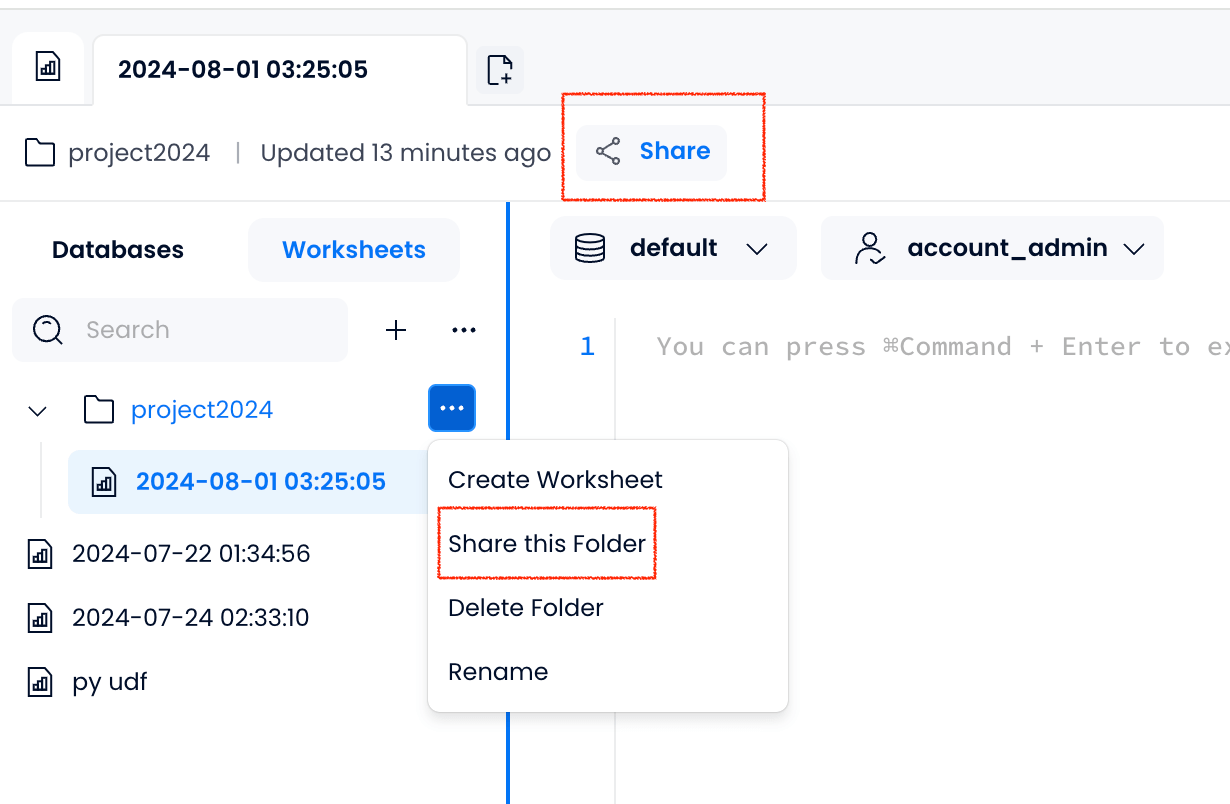
You can share your worksheets with everyone in your organization or specific individuals. To do so, click Share in the worksheet you want to share, or click Share this Folder to share a worksheet folder.
In the dialog box that appears, select the sharing scope. You can copy and share the link with the intended recipients, who will also receive an email notification. Please note that if you choose the Designated Members scope, recipients must click the link you share for the sharing to be successful.
- To view the worksheets shared with you by others, click Worksheets in the sidebar, then click the Shared with Me tab on the right.
- When you share a worksheet with others, they can execute the SQL statements in it if they have the necessary permissions, but they won't be able to make any edits to the statements.
Exporting Query Results
TiDB Cloud Lake provides the ability to export query results. However, this feature requires the organization Owner to grant the EXPORT permission to team members. For data security purposes, this feature is disabled by default.
If you need to use this feature, please contact your organization Owner to enable the permission(Admin > Users & Roles).